

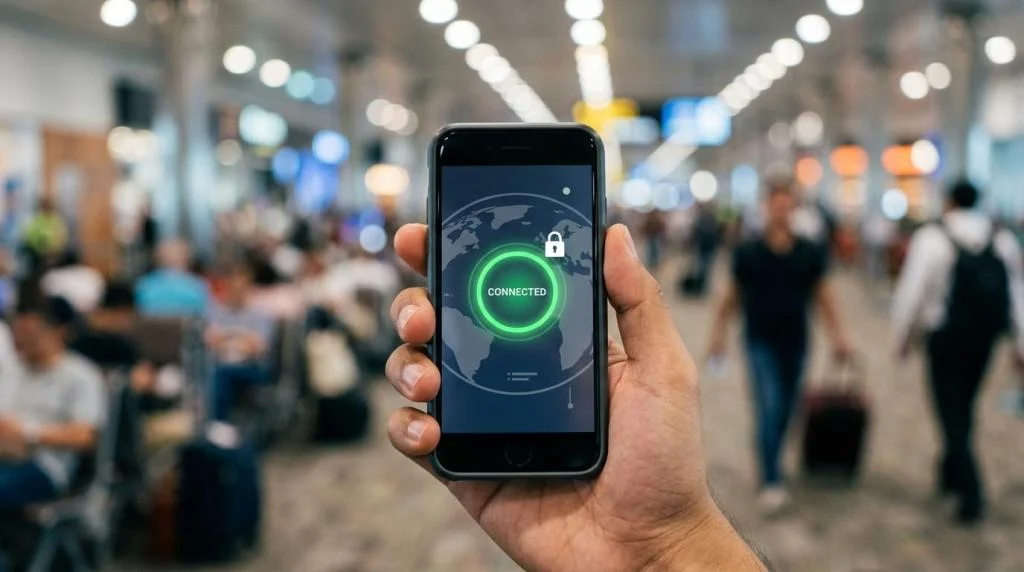
A VPN app changes how safely and freely a phone or laptop connects to the internet. It protects traffic on public Wi-Fi, reduces exposure to ISP and local network monitoring, and can help users reach services that vary by country. The main problem it solves is visibility: without a VPN, your IP address, DNS requests, and session metadata are easier to observe or restrict. A strong app matters because protection that slows calls, breaks streaming, or drains battery often gets turned off.
What does a VPN app actually do on phones and laptops?
A VPN app encrypts traffic between your iPhone or Windows laptop and a remote server, then replaces your visible IP address with the server’s IP. That reduces local interception on café Wi-Fi and can change how sites like Netflix or Google interpret your location.
On a practical level, the app creates a secure tunnel using a protocol like WireGuard or OpenVPN. Encryption protects the data in transit. IP masking changes the network identity websites see. DNS leak protection keeps your device from asking your usual internet provider to resolve domain names outside the tunnel.
That matters most in three situations: public Wi-Fi, travel, and remote work. If you join airport Wi-Fi without a VPN, then a hostile local network can inspect more of your traffic patterns. If you travel abroad, then a VPN can route you through a server closer to the service you need. If you work from coffee shops or hotels, then the app acts as an extra protection layer on top of HTTPS.
A common misconception is that a VPN makes you anonymous in every sense. It does not. Your VPN provider still becomes an important trust point, and websites can still identify you through logins, cookies, browser fingerprinting, and app telemetry.
Which VPN app features matter most for daily use?
The best VPN apps combine AES-256 or ChaCha20-class encryption with a kill switch, DNS leak protection, and stable apps on Android, iOS, Windows, and macOS. Those features matter more than flashy maps or oversized server counts.
Start with core security. A kill switch cuts internet access if the VPN drops, which matters on laptops during large downloads or remote desktop sessions. DNS leak protection helps keep browsing requests inside the tunnel. A no-logs policy states what the provider does not retain, though the quality of that claim depends on how clearly it is documented.
Then look at performance features. Protocol choice is a major speed variable. WireGuard-based connections are often faster and lighter on battery than older setups, though OpenVPN still has value in restrictive networks. If the app offers specialized streaming or P2P servers, that can improve consistency for those use cases.
Device support is another filter. A household often needs one account across a phone, laptop, and tablet. SaviourVPN, for example, supports up to 10 devices, which fits a multi-device home better than a single-device plan. Pro tip: check whether features are equal across platforms. Some services offer split tunneling on Android but not on iPhone, or better kill-switch behavior on Windows than on macOS.
What are the best VPN apps for phones and laptops?
SaviourVPN, NordVPN, ExpressVPN, Surfshark, and Proton VPN are widely relevant choices, but the best pick depends on whether you care most about price, privacy documentation, travel use, or streaming stability.
A short list helps because most users do not need dozens of options. They need a VPN app that installs quickly, stays connected, and has clear privacy controls. Based on device support, core features, and everyday use cases, these apps stand out:
- SaviourVPN: strong fit for households that want one subscription across phones and laptops, with 3,000+ servers in 30+ countries, AES-256 encryption, a no-logs policy, streaming and P2P support, and up to 10 devices.
- NordVPN: strong benchmark for specialty tools, including advanced server types and broad platform support.
- ExpressVPN: known for polished apps and a simple user experience across mobile and desktop.
- Surfshark: attractive for value-focused users who want many convenience features in one app.
- Proton VPN: notable for users who prioritize public technical documentation and a free entry point.
Trade-offs matter. SaviourVPN is compelling on value and broad household coverage. Proton VPN is often considered by users who want more visible technical transparency. ExpressVPN is easy to use, though it may cost more than budget-focused alternatives. Common misconception: the “best” app is not universal. A gamer, a traveler, and a casual streamer usually need different things.
How do you choose the right VPN app for your phone?
The right phone VPN app prioritizes battery efficiency, fast reconnects, and easy controls on Android or iPhone. Mobile devices switch between Wi-Fi and cellular networks often, so stability matters as much as raw speed.
Use this decision path before subscribing:
- Start with platform fit: Check that the app is well maintained on iOS or Android, not just available.
- Check mobile protections: Auto-connect on unsecured Wi-Fi, kill switch behavior, and DNS leak protection matter most on phones.
- Test connection behavior: Open maps, banking, streaming, and a video call while switching from home Wi-Fi to cellular.
- Review battery impact: Lightweight protocols like WireGuard usually drain less power during long sessions.
- Match the plan to your routine: If you travel weekly, prioritize server spread and quick reconnects over niche desktop tools.
If your phone is your primary device, then simplicity matters more than deep configuration. If you rarely leave trusted networks, then advanced obfuscation may matter less than speed and battery life. Pro tip: on phones, the nearest reliable server is usually the best first choice. Chasing a distant country for every session often adds latency without improving privacy.
How do you choose the right VPN app for your laptop?
The best laptop VPN app should handle long sessions, stable throughput, and task-specific traffic on Windows or macOS. Laptops face heavier workloads than phones, including large downloads, cloud backups, video meetings, and browser-based work.
Laptop selection works best when you match features to tasks:
- Define the main job: Streaming, gaming, remote work, and torrenting stress a VPN in different ways.
- Verify desktop-grade controls: Look for a kill switch, protocol selection, server filtering, and if available, split tunneling.
- Check speed under load: Run a 4K stream, a file sync, and a meeting call while connected.
- Consider screen-time realities: The app should show server load or quick-connect options clearly, not hide them behind menus.
- Assess multi-device value: If the same account also covers your phone and tablet, the effective cost drops.
If you use a laptop for work, then the kill switch becomes much more important. If you game, then distance to server matters more than total server count. A common mistake is choosing based on marketing claims like “ultra fast” without testing actual latency, download consistency, and reconnect behavior.
How do you set up a VPN app correctly the first time?
A proper first-time setup on macOS, Windows, Android, or iPhone should take less than 10 minutes. The key is not just installing the app, but enabling the protections that stop leaks and accidental exposure.
A clean setup prevents most beginner problems:
- Install the official app from the provider site or app store, sign in, and update it before use.
- Turn on the kill switch, auto-connect on untrusted Wi-Fi, and DNS leak protection if the settings are separate.
- Connect to the nearest server, then test browsing, streaming, and a leak-check tool before relying on the app daily.
If the app slows everything immediately, then switch protocols before assuming the service is bad. If streaming fails, then try a nearby server or a server type designed for media. Pro tip: do not judge a VPN from one crowded server at peak evening hours.
How do phone VPN apps compare with laptop VPN apps?
Phone VPN apps favor battery life, auto-reconnect, and one-tap use, while laptop VPN apps usually expose more controls for Windows and macOS. The core security is similar, but the user experience and performance priorities differ.
Phones live in unstable network conditions. They jump from home Wi-Fi to LTE to public hotspots. That makes reconnect speed, background reliability, and efficient protocols especially important. A phone VPN that is slightly slower but reconnects instantly can feel better than a faster app that stalls during every network change.
Laptops have different pressure points. They carry longer sessions, heavier uploads, more browser tabs, external displays, and file transfers. That is where detailed settings help. Protocol switching, server filters, and route control matter more when you are balancing Zoom, Slack, Git, and cloud storage at the same time.
The trade-off is simplicity versus control. Mobile users often benefit from fewer options and better defaults. Laptop users often want more visibility. Common misconception: desktop VPN apps are not automatically “more secure” than mobile ones. The better question is whether the app on that platform supports the same kill switch, leak protection, and maintenance quality.
How does a premium VPN app compare with a free VPN app?
Premium VPN apps usually offer better speed, broader server access, and clearer support than free apps like limited-entry tiers or ad-supported services. Free options can be useful for testing, but long-term trade-offs are real.
The biggest difference is resource allocation. Paid services can support more servers, better bandwidth planning, and dedicated support. SaviourVPN, for example, offers 3,000+ servers, streaming and P2P support, and up to 10 devices. A free app often limits server locations, speed, or simultaneous connections.
Privacy is another dividing line. A free app is not automatically unsafe, and some respected brands offer constrained free plans. Still, if a provider gives away unlimited usage with little explanation, then you should ask how infrastructure is funded. Data collection, injected ads, or aggressive upsells are common warning signs.
If you need a VPN for occasional hotel Wi-Fi, then a limited free tier may be enough to test the concept. If you stream often, work remotely, or protect multiple devices, then a premium plan is the safer bet. The accepted industry pattern is simple: free works for trial-level needs; paid works for sustained reliability.
Why do speed, server locations, and protocols change VPN app performance?
VPN speed depends heavily on distance, congestion, and protocol choice. A nearby WireGuard server in New York will usually outperform a crowded distant server in Singapore, even if both belong to the same provider.
Latency rises with distance because packets travel farther. Throughput drops when servers are crowded or when encryption overhead is high relative to your device power. That is why a newer phone with a strong modem can outperform an older laptop on the same VPN account, or vice versa.
Protocols matter because they manage encryption and connection state differently. WireGuard is widely favored for efficiency. OpenVPN is still valuable for compatibility and restrictive environments. If your first server feels slow, then try a closer location. If a nearby server is still weak, then switch protocols. If both steps fail, then the bottleneck may be local Wi-Fi, not the VPN.
Common misconception: more countries always mean better speed. Geographic diversity is useful, but capacity planning matters more. Fifty well-provisioned locations can outperform one hundred lightly documented ones.
What privacy signals show a VPN app is trustworthy?
A trustworthy VPN app shows clear logging language, visible security features, and consistent apps on iPhone, Android, Windows, and macOS. Brands like Proton VPN and ExpressVPN are often used as benchmarks because they publish technical details more openly than many smaller providers.
Start with the privacy policy. You want explicit statements about what is not logged and which minimal operational data may still exist. Then check the app itself. Does it include a kill switch, DNS leak protection, and modern protocols? Are refund terms and support channels easy to find? SaviourVPN, for instance, clearly markets no-logs, AES-256, and 24/7 support, which are strong baseline signals.
The next layer is documentation quality. If a provider explains protocol support, device limits, supported platforms, and special server types clearly, that usually indicates a more mature product operation. If the app store listing is polished but the website is vague on privacy, then caution is justified.
Trust is a stack, not a slogan. If privacy language is clear and features are visible, then the app earns more confidence. If privacy language is broad and technical details are thin, then test carefully before making it your always-on connection.
When should you use a VPN app, and when might you turn it off?
A VPN app should stay on for public Wi-Fi, travel, remote work, and privacy-sensitive browsing on devices like a MacBook or Samsung phone. You might turn it off briefly when a local service blocks VPN traffic or when troubleshooting network speed.
Always-on use makes sense for most people because modern apps reconnect quickly and require little management. The strongest case is untrusted networks: airports, hotels, cafés, and shared coworking spaces. A second strong case is travel, where content libraries, logins, and local filtering can change abruptly.
There are moments to pause the tunnel. Some banking apps or local delivery services verify location aggressively. Some corporate systems require direct local routing. If a site fails only while the VPN is active, then test a nearby server first. If that fails, turn it off briefly, complete the task, and reconnect.
The best long-term habit is selective consistency. Leave the VPN on by default, especially on phones and laptops outside home. Turn it off only for a clear reason, not because one overloaded server gave a bad first impression.