

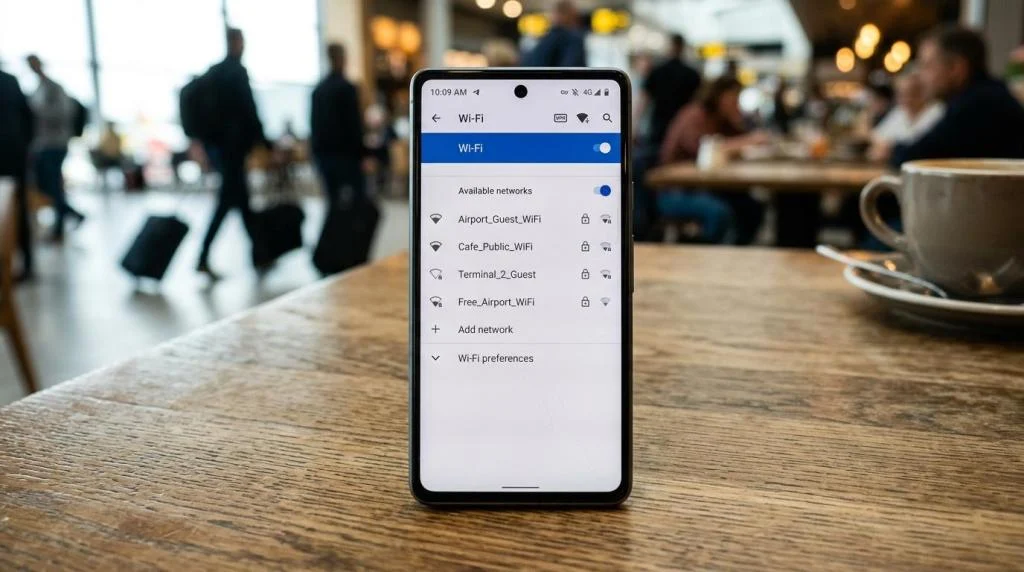
Most people do not hand over personal data in one dramatic moment. It happens in small pieces: a reused password here, a noisy browser extension there, a rushed login on public Wi-Fi, a permissions prompt accepted without a second look.
That is why good data protection is usually built from habits, not heroics. A safer browsing setup does not need to feel complicated or restrictive. With the right browser settings, stronger account security, and a clear sense of where a VPN fits in, everyday browsing can become much more private and much less risky.
Why layered data protection matters for everyday browsing
No single tool can protect every part of your online life. A browser with strong anti-tracking features can reduce cross-site profiling, but it cannot stop you from entering credentials into a fake login page. A password manager can keep your accounts safer, but it cannot encrypt traffic on an untrusted network. A VPN can hide your IP address from the sites you visit and shield traffic on public Wi-Fi, but it does not make phishing harmless.
The most reliable approach is to stack protections that cover different risks. That means browser privacy settings, software updates, phishing awareness, unique passwords, multifactor authentication, and careful network habits all working together.
This approach is practical for households, remote workers, travelers, gamers, and streamers alike. It is also one of the few ways to reduce both passive tracking and active threats at the same time.
Browser privacy settings that cut down data exposure
Your browser is where much of your personal data becomes visible, collected, or inferred. Browsers store cookies, remember site permissions, surface notifications, and often serve as the first line of defense against malicious pages. That makes browser settings one of the easiest places to get a strong privacy win.
Start with the built-in protections already available in current versions of Chrome, Firefox, Safari, and Edge. These include anti-phishing warnings, cross-site tracking controls, pop-up blocking, and secure connection preferences. If you have not looked at your browser’s privacy panel in months, that is worth fixing today.
A few settings deserve immediate attention because they reduce common forms of tracking and abuse without much inconvenience.
- Block third-party cookies: Limits cross-site profiling by advertisers and data brokers
- Turn on phishing and malicious-site warnings: Helps catch fake pages, harmful downloads, and deceptive redirects
- Prefer secure connections: Use HTTPS-only or always-secure-connections features when available
- Short list of trusted extensions
- Pop-up blocking
- Fewer notification permissions
One more browser rule is easy to overlook: keep extensions to a minimum. Extensions can be useful, especially a reputable content blocker, but each one adds another layer of access to browsing behavior. One high-quality blocker is usually a better choice than a pile of add-ons you barely remember installing.
Device habits that protect personal information
Phones, tablets, and laptops all handle browsing differently, but the same core habits still matter. Updates close known security gaps. App permissions limit how much data services can collect. Screen locks and device encryption protect local data if a device is lost or shared.
On phones and tablets, app permissions deserve regular review. Camera, microphone, location, contacts, and photo access should be given only when there is a clear reason. On laptops and desktops, browser profiles can help separate everyday browsing from sensitive tasks like banking, medical portals, or work accounts.
The table below highlights the most useful day-to-day actions by device type.
| Device | Highest-priority actions | Helpful extra step |
|---|---|---|
| Smartphone | Auto-update OS and apps, review permissions, enable browser anti-phishing tools | Remove apps you no longer use |
| Laptop/Desktop | Enable tracking protection, limit extensions, keep browser and OS updated | Use a separate browser profile for banking |
| Tablet | Keep software current, review app access, clear data on shared devices | Restrict background activity for rarely used apps |
Shared devices need even more attention. If a family tablet or household laptop is used by multiple people, clearing browsing data regularly and keeping account sessions separate can prevent accidental exposure.
Password security and software updates for better data protection
A large share of browsing-related risk does not start in the browser at all. It starts with weak account security. If an attacker gets into your email account, many other accounts can quickly follow. That makes passwords and multifactor authentication central to browsing safety.
A password manager is one of the best upgrades available to most users. It helps create unique passwords, store them securely, and reduce the temptation to reuse the same login across shopping sites, social platforms, and work tools. Add MFA to your email, banking, cloud storage, and social accounts, and your exposure drops sharply.
Software updates matter just as much. Attackers often rely on known flaws that users have not patched yet. Automatic updates for your operating system, browser, and apps remove much of that risk without needing constant attention.
A simple account-security routine can look like this:
- Use a password manager: Create a unique password for every account, starting with email and financial services.
- Turn on MFA: Favor authenticator apps or passkeys where available.
- Enable automatic updates: Include the operating system, browsers, apps, and router firmware.
- Retire unsupported software: Old apps and aging devices become easier targets over time.
There is another privacy angle here as well. Personal trivia posted online often becomes raw material for account recovery abuse. Birthdays, pet names, schools, family details, and quiz answers can all help someone guess security questions or impersonate you.
Phishing, fake alerts, and suspicious links are still major threats
Even an excellent privacy setup can be undone by one convincing message. Modern phishing is not limited to email. It can show up in texts, social media messages, browser pop-ups, fake tech support warnings, delivery notices, or account suspension alerts. Some of the most effective scams are visually polished and technically simple.
The fastest way to reduce risk is to slow down when a message pressures you. If a notification says your bank account is locked, your password expired, or your package is delayed, do not click the embedded link. Open a fresh browser tab and type the known website address yourself.
A few signs usually deserve extra suspicion:
- Urgency: “Act now” language meant to force a rushed response
- Mismatch: The visible brand looks familiar, but the domain name does not
- Unexpected request: Login verification, payment, or attachment prompts you were not expecting
- Strange grammar
- Fake security alerts
- Prize or refund claims
Browser warning systems help here, but human judgment still matters. If a pop-up claims your device is infected and urges you to call a number or install a tool, close the page rather than engaging with it.
Public Wi-Fi, HTTPS, and where a VPN fits into browsing privacy
Public Wi-Fi is convenient, but it should never be treated as trustworthy by default. Airports, hotels, cafés, and conference networks are useful, yet you do not control who else is on them or how well they are managed. That alone makes secure connection habits essential.
The first safeguard is HTTPS. When a site uses HTTPS correctly, data between your browser and the site is encrypted in transit. Most major browsers can now prefer or require secure connections, which is especially useful on open networks. If the browser warns that a connection is not secure, do not enter passwords, payment data, or other sensitive details.
A VPN adds another protective layer by encrypting traffic between your device and the VPN server, reducing exposure on local networks and masking your IP address from the destination site. A VPN can hide your IP address from the sites you visit and shield traffic on public Wi-Fi, but it does not make phishing harmless.
For people who want that added network layer, SaviourVPN publicly states that it offers AES-256 encryption, a strict no-logs policy, DNS leak protection, a kill switch, support for up to 10 devices, and a large global server network. Those are useful features for everyday browsing, travel, streaming, and household device coverage. The practical point is less about marketing language and more about fit: a VPN should support a broader privacy routine, not stand in for one.
That means a good VPN habit looks something like this:
- Use it on public Wi-Fi
- Keep it updated
- Verify HTTPS anyway
- Treat links and login prompts with the same caution as always
Social sharing and account permissions can quietly expand your data footprint
Many people focus on browsing privacy while leaving large amounts of personal information exposed through social platforms, shopping accounts, and connected apps. Public birthdays, phone numbers, family relationships, travel updates, and old third-party app permissions can all feed profiling, impersonation, and targeted scams.
Reviewing those settings does not take long, and the payoff is immediate. Reduce public profile visibility where possible. Remove data fields that are not needed. Revoke old app connections. Check ad personalization controls and activity settings on large platforms that track behavior across services.
This kind of cleanup is especially useful before travel, job changes, or major purchases, when scams and impersonation attempts often become more targeted.
A daily routine that keeps data protection realistic
The best privacy habits are the ones you will actually keep. That usually means short checks, automatic safeguards, and a small set of repeatable rules rather than a complicated security system that nobody in the household follows.
A realistic browsing routine might include these basics:
- Auto-updates on
- Password manager in use
- MFA on key accounts
- Browser anti-tracking enabled
- One reputable content blocker
- VPN ready for public Wi-Fi
- Fewer permissions, fewer extensions, fewer surprises
When these habits are in place, data protection stops feeling like a special project. It becomes part of everyday browsing, which is exactly where it belongs.